

Your first project
This walks through a new project from start to play: a floor, a box and a camera to see them by.
Create the project
Section titled “Create the project”Start the editor without a project and it opens the project manager.
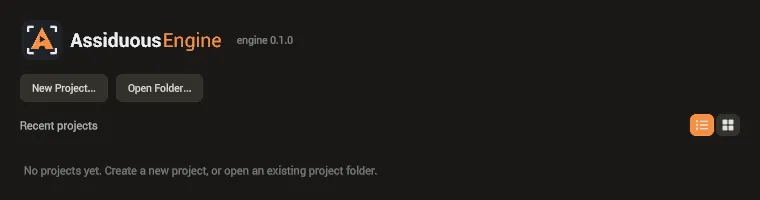
Choose New Project…, give the project a name, and pick the folder to create it in (the project gets its own folder inside it). Create makes the project and opens it.
A new project comes with a few things to start from: Roboto as its UI font, a sky image (Sky), and three meshes to build with: Cube, Plane and Sphere. They are in the Assets panel, under Environment, Fonts and Meshes.
The editor opens on the project’s page: its settings, its scenes (none yet) and Play.
Make a scene
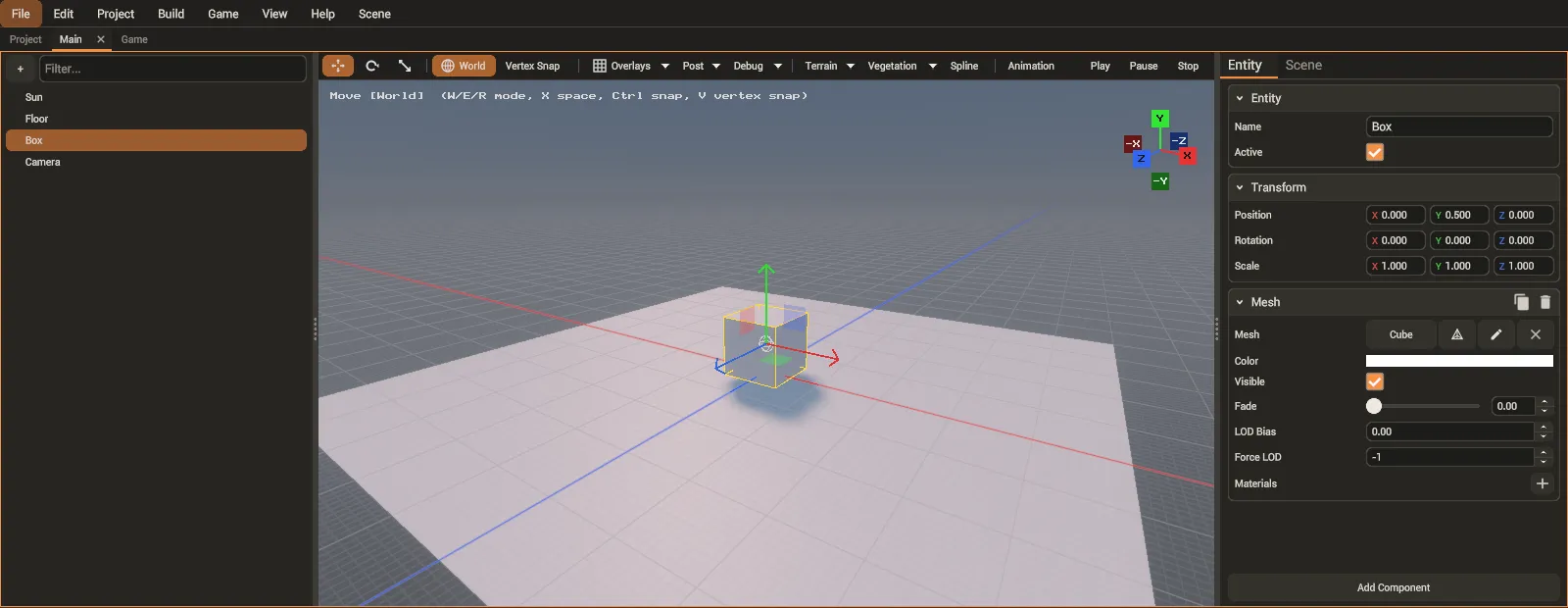
Section titled “Make a scene”Choose File > New Scene and name it, say Main. The scene opens in its own page: the
hierarchy of its entities on the left, the viewport in the middle and the inspector on the right.
A new scene has one entity, a Sun: a directional light that casts shadows, angled so that
what you add shows its shadow.
Add a floor:
- Choose Scene > Entity > Create Entity (or the + above the hierarchy). Select it and,
in the inspector, rename it
Floor. - Choose Add Component, find Mesh, and add it.
- In the Mesh component, set its mesh to Plane.
- Set its Scale to 10, 1, 10 so it covers more ground.
Add a box the same way: an entity named Box with a Mesh component whose mesh is Cube, at
position 0, 0.5, 0 so it stands on the floor.
Add a camera
Section titled “Add a camera”The game draws through a camera, so a scene with none shows nothing. Create one more entity,
Camera, and add a Camera component. A new camera is the scene’s primary camera, the one the
game uses. Move it up and back from the box, for example to position 3, 2.5, 5, and turn it
to look at the box.
Save the scene with File > Save (Ctrl+S).
The game starts from the project’s default scene. Open Project > Project Settings…, and on
the Startup tab set Default scene to Main.
Then choose Game > Play (or Play on the project’s page). The Game tab opens and runs the game as the player would: the default scene through its camera.
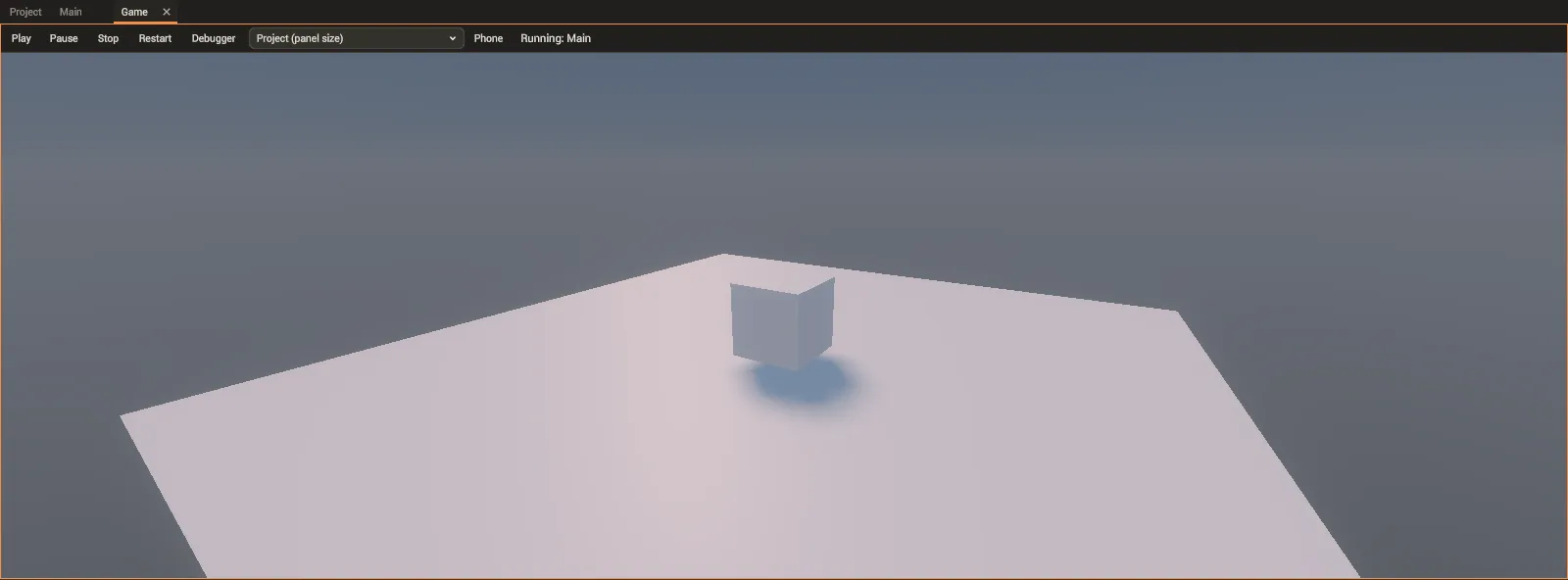
Stop in the Game tab ends the run.
A new scene’s sky is a plain gradient. To put the starter sky (or one of your own) behind it, see Skies. From here, the sample games show what a finished project looks like.